

How to install and setup Django Jet theme?
Customize the Django Admin With a Modern Theme
Django JET is a great library to modernize your classic Django admin panel into something modern, styling and customizable admin panel.
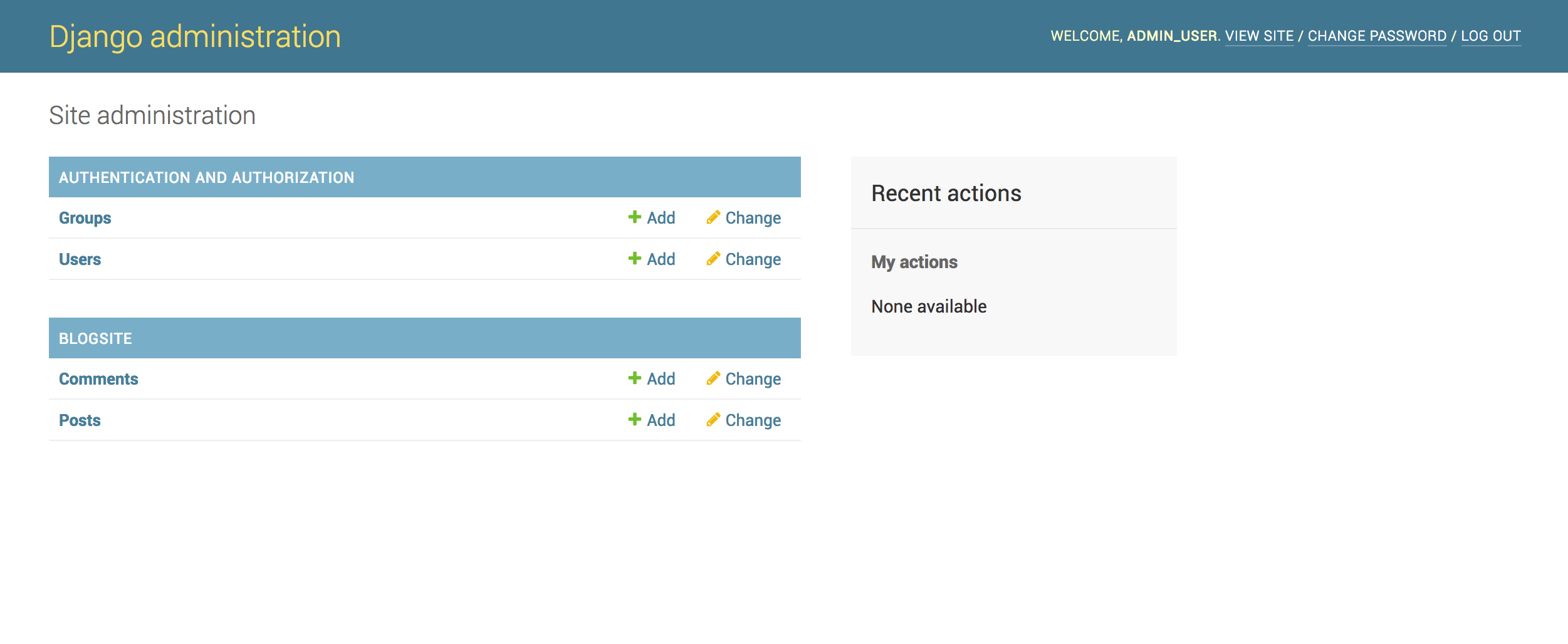
For comparison, here is how the classic Django admin panel looks like:
After customization, it will look something like this:
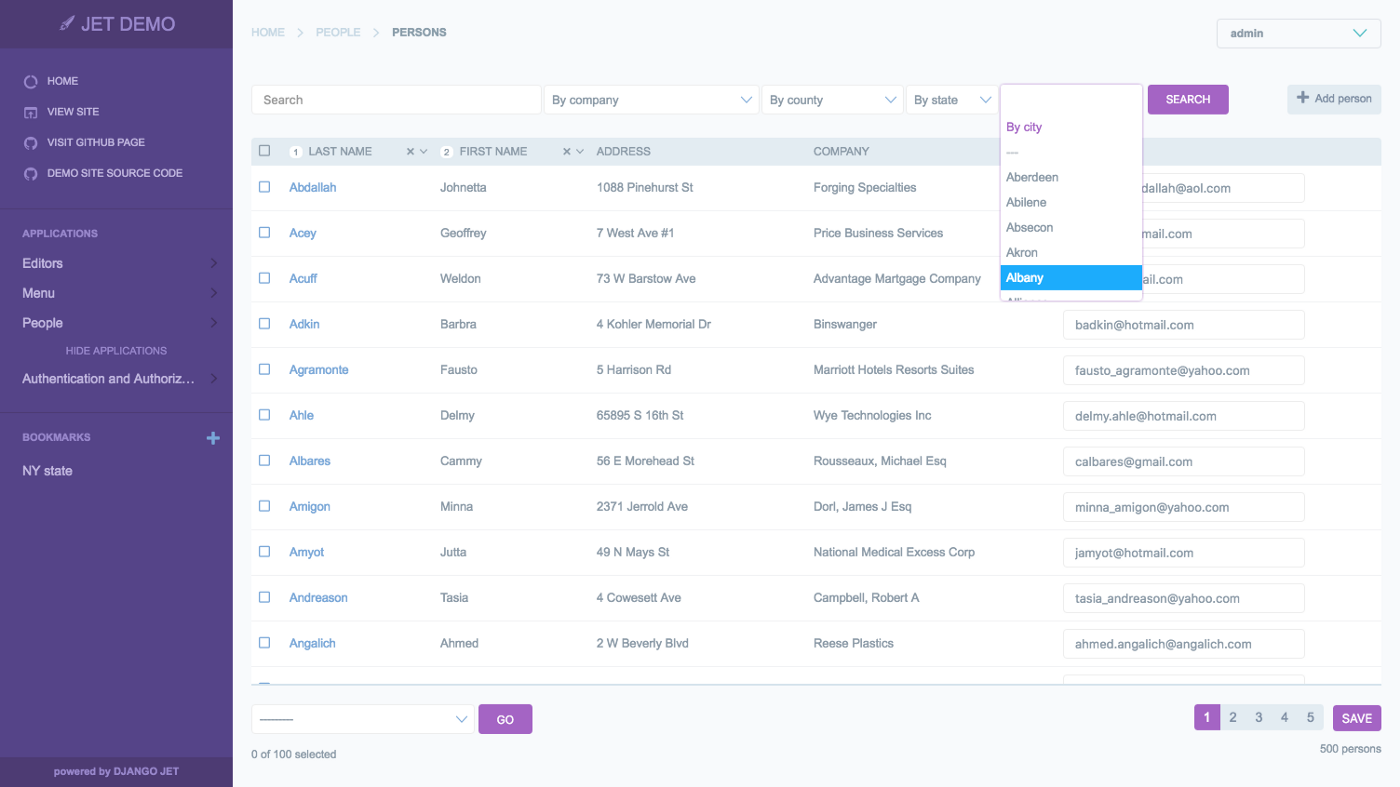
Looks cool, huh? Let's customize the admin panel and make it look cool.
Installation:
First install the Django Jet Reboot package in your Django project.
pip install django-jet-reboot
Setup:
Add
jetpackage at the top of yourINSTALLED_APPSlist in the Djangosettings.pyfile, it is important to note that thejetpackage should be added at the top of theINSTALLED_APPSlist so that all the admin templates can be overridden.INSTALLED_APPS = [ 'jet', ... ]Now you have to open our root
urls.pyfile and add this url path at the top of theurlpatternslist.... urlpatterns = [ path('jet/', include('jet.urls', 'jet')), path('admin/', include(admin.site.urls)), ... ) ...You are all setup, just run the migrate command and your new admin theme has been installed.
python manage.py migrate jetLet’s do one last thing, which is to change the color of our new theme. (This is optional, you can skip to the next step). Just open the
settings.pyfile, and add this code at the end to change the color of new Django admin theme.JET_DEFAULT_THEME = 'light-violet'You have other color options such as:
default
green
light-violet
light-green
light-blue
light-gray
Now your admin will look something like this:
Any doubts? Write it down in the comments.
For more such crispy blogs daily, follow Dev.Junction, subscribe to our newsletter and get notified.
Social Links
LinkedIn: https://www.linkedin.com/in/mnamegaurav/
YouTube: https://www.youtube.com/devjunction
Website: https://gaurav.devjunction.in/
GitHub: https://github.com/mnamegaurav
Instagram: https://www.instagram.com/mnamegaurav/
Twitter: https://twitter.com/mnamegaurav
About the author
Experienced Full Stack Software Engineer with 4+ Years of experience, proficient in Django and React, with expertise in Python, JavaScript and Typescript, also an author of Dev.Junction Blogs & YouTube Channel, expert in Python/Django, Rest Framework, ReactJS/NextJS and TypeScript, currently based in Pune, India.
Comments
Join the discussionOne Updation in syntax
Hey Brother , I am continuously follow your Blog .You have good potential to share a knowledge in a brief. path(r'admin/', include(admin.site.urls)),------this not work in latest django version .
plz resolve this .
It work in Django < 1.9
Hi Anurag, thanks for mentioning an error, I have made the changes as per your recommendation.
Thanks Michele
Django admin tips and tricks
Django provides a great Admin panel rich in features and highly customizable, in this series of blogs we will be introduced to all such possible customizations and more.


